

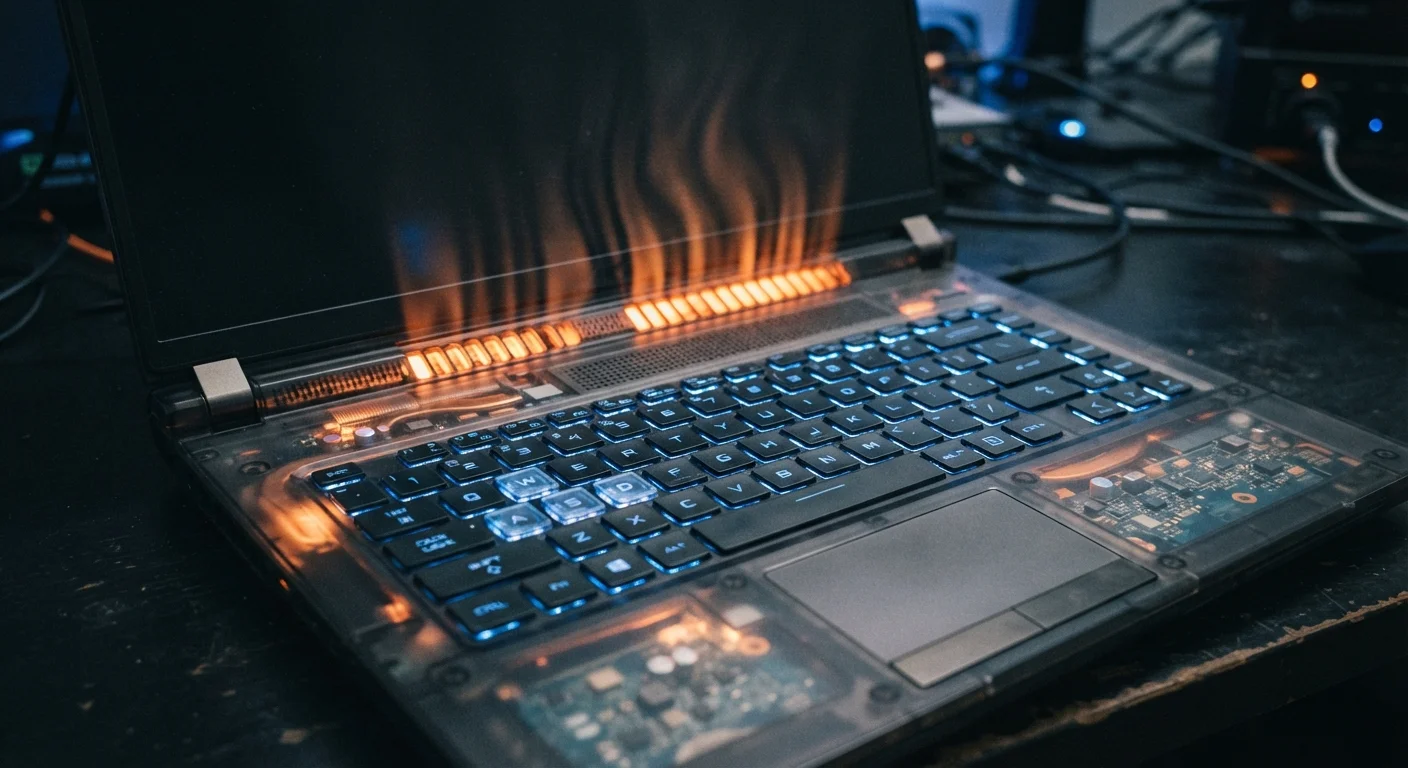
The Heat Problem: Thermal Throttling Explained
The single most common hardware cause of a slowing laptop is heat — specifically, what happens when a processor gets too hot to run at full speed. Modern CPUs are designed to protect themselves by reducing their clock speed automatically when temperatures climb past safe thresholds. This protective mechanism is called thermal throttling.
Over time, dust and debris accumulate inside laptop vents and on cooling fans, restricting airflow. The thermal paste that sits between the CPU and its heat sink — which conducts heat away from the chip — also dries out and becomes less effective after several years. The result: temperatures that once peaked at 70°C during heavy tasks now routinely hit 90°C or above, triggering sustained throttling that cuts throughput significantly.
Cleaning vents with compressed air and, in some models, replacing thermal paste are two of the most impactful physical interventions available. These aren't casual DIY tasks for every laptop — some require disassembly — but the performance recovery can be dramatic.
When to Clean Your Laptop Vents
If your laptop's fan runs loudly during light tasks, or the bottom surface feels hot during normal use, dust buildup is a likely culprit. A short blast of compressed air into the exhaust vents (with the laptop powered off) can make a noticeable difference. For deeper cleaning, consult your model's service manual or a qualified technician — some designs trap dust more aggressively than others.
Storage Slowdowns: SSDs vs. HDDs Over Time
Your storage drive is the other major hardware variable. Traditional hard disk drives (HDDs) slow measurably as they fill up, because the drive's read/write head must travel farther to find fragmented data scattered across the platter. Defragmentation tools exist specifically to address this, though their effect diminishes as drives age and the mechanical parts wear.
Solid-state drives (SSDs) don't have moving parts, so they don't fragment in the same way — but they're not immune to degradation. SSDs slow down when they're nearly full because the controller needs free cells to perform write operations efficiently. Most SSDs maintain reserved space (called over-provisioning) to help, but keeping at least 15–20% of an SSD free remains good practice.
SSDs also have a finite number of write cycles per cell, though for typical home and office use, this rarely becomes a practical limit before other parts of a laptop age out. The more relevant concern is full-drive performance loss, which is addressable by managing what's stored.
~30–50%
CPU throughput lost to thermal throttling
Thermal throttling in dust-clogged laptops can reduce processor output by roughly this range under sustained load, based on hardware benchmarking observations.
15–20%
Minimum free SSD space for optimal performance
Storage engineers and OS vendors generally recommend keeping at least this much space free on an SSD to allow efficient write operations and wear leveling.
~500 cycles
Typical lithium-ion battery lifespan in charge cycles
Most laptop lithium-ion batteries are rated to retain around 80% capacity after approximately 300–500 full charge cycles, though this varies by manufacturer and usage pattern.
Software Bloat and Background Processes
Hardware alone doesn't tell the whole story. A major — and often underestimated — contributor to laptop slowdowns is the accumulating weight of software. Every app installed may add background processes, system services, and startup items. Over months, these stack up, consuming RAM and CPU cycles that compete with whatever you're actually trying to do.
This is sometimes called software bloat. It includes legitimate apps that have grown more resource-hungry with updates, pre-installed vendor software that runs constantly, and browser extensions that each consume memory. Reviewing startup programs (via Task Manager on Windows or Login Items on macOS) often reveals a surprising list of processes launching automatically — many of which most users never intentionally enabled.
Operating system updates also add complexity over time, though they frequently include performance patches that offset this. Skipping updates, by contrast, tends to leave known inefficiencies unaddressed. The habits that quietly shorten everyday gadget lifespan often include ignoring these background software dynamics until the slowdown is severe.
OS Updates and Performance: A Nuanced Relationship
Operating system updates can sometimes make older hardware feel slower, particularly when new features require more memory or processing power than older models were designed to handle. However, skipping updates also leaves security vulnerabilities and known performance bugs unpatched. The tradeoff is real — but for most users on machines less than five years old, staying current is generally the better choice.
Battery Aging and What It Does to Performance
Laptop batteries lose capacity with every charge cycle. A battery that once held 100% charge may hold only 70–80% after two or three years of regular use. This matters for performance because many laptops reduce CPU and GPU power limits when running on battery to preserve remaining charge — and an aging battery reaches those limits faster.
On some systems, even when plugged in, a degraded battery can limit how much power the system draws during sustained peak loads, because the battery is part of the power delivery path. The practical result: a laptop that ran demanding tasks easily when new may struggle to maintain performance under identical loads years later.
Battery health can be checked without third-party tools — Windows includes a battery report via the command prompt (powercfg /batteryreport), and macOS shows cycle count and condition in System Information. Understanding this degradation has parallels to how physical assets wear over time — much like vehicle depreciation works, performance and value decline follow predictable curves rather than sudden drops.
For readers curious about where computing hardware is heading beyond these everyday concerns, the experimental architectures explored in neuromorphic and photonic computing suggest future devices may handle heat and efficiency very differently.
“The performance of a laptop is not a fixed property — it's a dynamic outcome of thermal conditions, available memory, storage health, and software load at any given moment. Understanding those variables is what separates informed users from frustrated ones.”
— A senior systems engineer, speaking on PC longevity at a hardware conference, Computer hardware systems engineer
Frequently Asked Questions
Several factors converge quickly: dust clogs cooling vents, installed software multiplies, and the operating system accumulates more background tasks. SSDs also write data less efficiently as they fill up. The effect is gradual but compounds noticeably within 12–24 months of regular use.
It often helps significantly, because a clean OS install removes accumulated bloatware, corrupted files, and unnecessary startup items. However, it won't fix underlying hardware issues like dust-clogged fans or a failing drive. It's best done after ruling out physical causes.
If your laptop is frequently using close to its full RAM capacity — which you can check in Task Manager or Activity Monitor — adding more RAM can yield a real improvement. If RAM usage is consistently low, the bottleneck likely lies elsewhere, such as storage speed or thermal throttling.
No. Thermal throttling is a protective mechanism, not a sign of permanent damage. Once the laptop cools down, performance typically returns to normal. However, chronic overheating over long periods can degrade thermal paste and shorten component lifespan.
Free utilities like HWMonitor (Windows) or iStat Menus (macOS) show real-time CPU temperatures and clock speeds. If your CPU temperature regularly exceeds 90°C under moderate load, or if clock speeds drop significantly during sustained tasks, throttling is likely occurring.
Yes, particularly with traditional spinning hard drives. When a drive is over 80–85% full, the operating system struggles to find contiguous space for temporary files and virtual memory, slowing read/write operations noticeably. SSDs are less affected but still perform better with some free space available.
The content on this site is for informational purposes only and is not a substitute for professional advice. Always consult a qualified professional for guidance specific to your situation.