

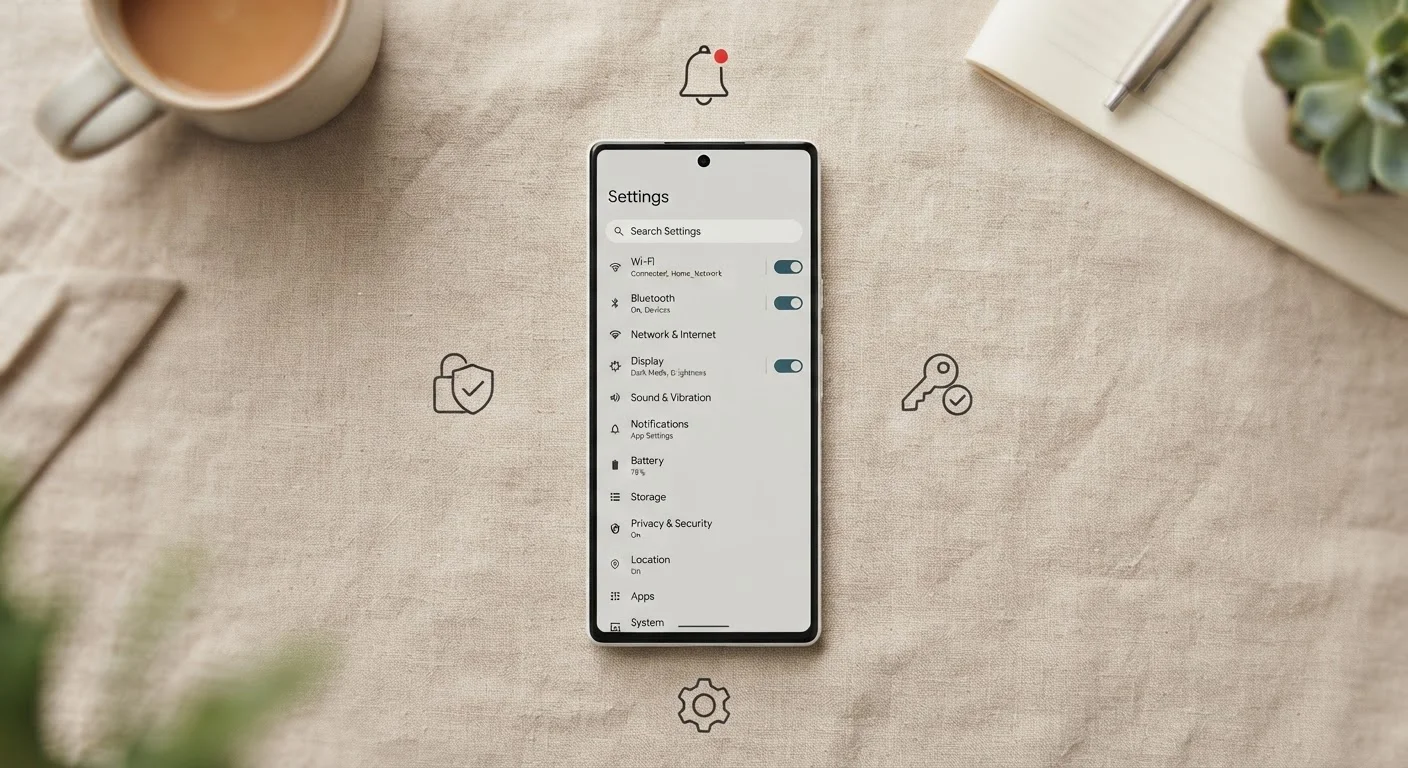
Why These Settings Matter More Than You Think
The average smartphone user receives dozens of push notifications every day. Each one is a tiny interruption — a context switch that fragments attention and, over time, conditions the brain to expect constant stimulation. Beyond the productivity cost, many of those notifications are generated by apps that have also been quietly collecting location data, accessing contacts, or listening for trigger words via the microphone.
These aren't hidden conspiracies. They're the predictable result of default settings designed to maximize app engagement rather than user well-being. The good news: the controls to change this are already on your phone. Understanding them is the first step toward a calmer, more private digital life. For a broader picture of what apps actually do with the access you grant, see what your apps actually know about you.
80+
Notifications received per day by average users
Research published by RescueTime estimated that smartphone users receive more than 80 notifications daily on average across apps.
23 min
Average time to refocus after an interruption
A widely cited study from the University of California, Irvine found it takes approximately 23 minutes to fully regain deep focus after a distraction.
~70%
Apps requesting location access
Privacy analysis by app-store researchers has consistently found that a large majority of popular apps request location permissions, often beyond what their core function requires.
Understanding and Auditing Notifications
Notifications fall into a few distinct categories worth understanding. Alert notifications appear as banners or pop-ups and demand immediate attention. Badge notifications show a number on the app icon. Sound and haptic alerts interrupt you even when the screen is off. Each can be toggled independently for every app on your device.
How to audit on iOS
Go to Settings > Notifications. You'll see a list of every app that has requested notification access. Tap any app to control whether it can show banners, play sounds, badge the icon, or appear on the lock screen. For most productivity apps, disabling sounds while keeping badges is a practical middle ground.
How to audit on Android
On most Android devices, navigate to Settings > Notifications > App notifications. Android also groups notifications into channels — sub-categories within a single app. A messaging app might have separate channels for direct messages, group chats, and promotional updates, each adjustable independently. This granularity is one of Android's underappreciated strengths.
A useful heuristic: if you haven't acted on a notification from a particular app in the past two weeks, turn it off entirely. You can always re-enable it later.
Start with Your Noisiest Apps
Rather than auditing every app at once, sort your notification list by the apps that alert you most frequently and start there. On iOS, Screen Time shows per-app notification counts under Activity. On Android, the Notifications section in Settings displays a count of recent notifications per app. Targeting the top five noisiest apps first delivers the most immediate relief.
Using Focus Modes to Protect Your Attention
Both iOS (Focus, introduced in iOS 15) and Android (Modes & Routines on Samsung, Digital Wellbeing on stock Android) offer structured ways to filter who and what can reach you during specific activities or times of day.
iOS Focus
Apple's Focus system lets you create named modes — Work, Sleep, Personal, Do Not Disturb — each with its own allowed contacts, allowed apps, and lock screen appearance. Critically, you can allow calls from specific people (a family member, a direct report) while blocking all other alerts. Automation rules can trigger Focus modes based on time, location, or when you open a particular app.
Android Modes
Stock Android's Do Not Disturb, and Samsung's Modes & Routines, operate on similar principles. You can configure which contacts qualify as priority senders, whether repeat callers get through, and what notification categories are silenced. Routines can activate these modes automatically — useful for meetings, workouts, or wind-down periods before sleep.
Create a 'VIP list' in your Focus settings with no more than five contacts whose calls and messages always break through. Fewer exceptions means the mode actually protects your time.
The effectiveness of Focus modes collapses when the allowed-contacts list grows large — at that point, most notifications get through anyway, defeating the purpose.
After installing any new app, go directly to Settings and strip all permissions it requested by default. Then use the app normally for a week and grant only the permissions that a blocked feature actually needs.
Apps often request permissions speculatively at install time. This 'deny first, grant selectively' approach reveals which permissions are truly functional versus which are data-collection grabs.
One underused feature on both platforms: Focus/DND scheduling. Setting a consistent nightly window — say, 10 PM to 7 AM — where only emergency contacts can reach you normalizes the boundary without requiring daily effort.
App Permissions: What You're Actually Granting
When an app requests permission to access your location, microphone, camera, contacts, or health data, it's asking for ongoing access to some of the most personal information your device holds. Permissions granted at install time are easy to forget — but they remain active until you change them.
The three permissions to review first
- Location: Consider whether an app genuinely needs location access to function. Most should be set to While Using rather than Always. Very few apps have a legitimate reason for background location access.
- Microphone: Social, productivity, and even some shopping apps have requested microphone access. Unless the core function of the app depends on voice input, deny it.
- Camera: Similar logic applies. A flashlight app has no reason to access your camera roll or take photos.
How to review on iOS
Go to Settings > Privacy & Security. Each permission type (Location Services, Microphone, Camera, Contacts, etc.) lists every app that has been granted access. You can revoke access individually from this screen.
How to review on Android
Navigate to Settings > Privacy > Permission Manager. Android also provides a Permission usage dashboard showing which apps accessed sensitive permissions in the past 24 hours or 7 days — a genuinely useful transparency tool. For a guided walkthrough of pruning and re-permissioning your entire app library, see auditing the apps on your phone.
Always-On Location Access Is Rarely Necessary
Granting an app 'Always' location access means it can track your movements continuously, including when you're not using it. For the vast majority of apps — including most weather, fitness, and social apps — 'While Using' provides the same functionality without background tracking. Review your location permissions list specifically for any app set to 'Always' and evaluate whether that level of access is justified.
Building a Sustainable Notification and Privacy Routine
One-time audits are valuable, but the goal is a repeatable habit. Apps update, new ones get installed, and permissions drift back toward permissive defaults over time. A quarterly review — checking notifications, Focus rules, and permissions — takes under 20 minutes and keeps your settings aligned with your actual needs.
A practical starting framework:
- Week one: Audit all notification settings. Disable alerts for any app you wouldn't immediately open when the notification arrives.
- Week two: Set up at least one Focus mode — start with a Sleep or Do Not Disturb window if nothing else.
- Week three: Go through permissions, starting with Location, Microphone, and Camera.
- Ongoing: When installing a new app, decline all non-essential permissions at setup. You can grant them selectively later if a feature requires it.
Managing your phone's behavior is one piece of a larger digital hygiene picture. If you haven't yet addressed account security and online privacy basics, taking control of your online accounts is a logical next step. And for those juggling multiple devices, managing your digital life across multiple devices covers how to keep settings and access consistent across your ecosystem.
Your phone is a powerful tool. These settings ensure it works for you — not the other way around.
The content on this site is for informational purposes only and is not a substitute for professional advice. Always consult a qualified professional for guidance specific to your situation.