

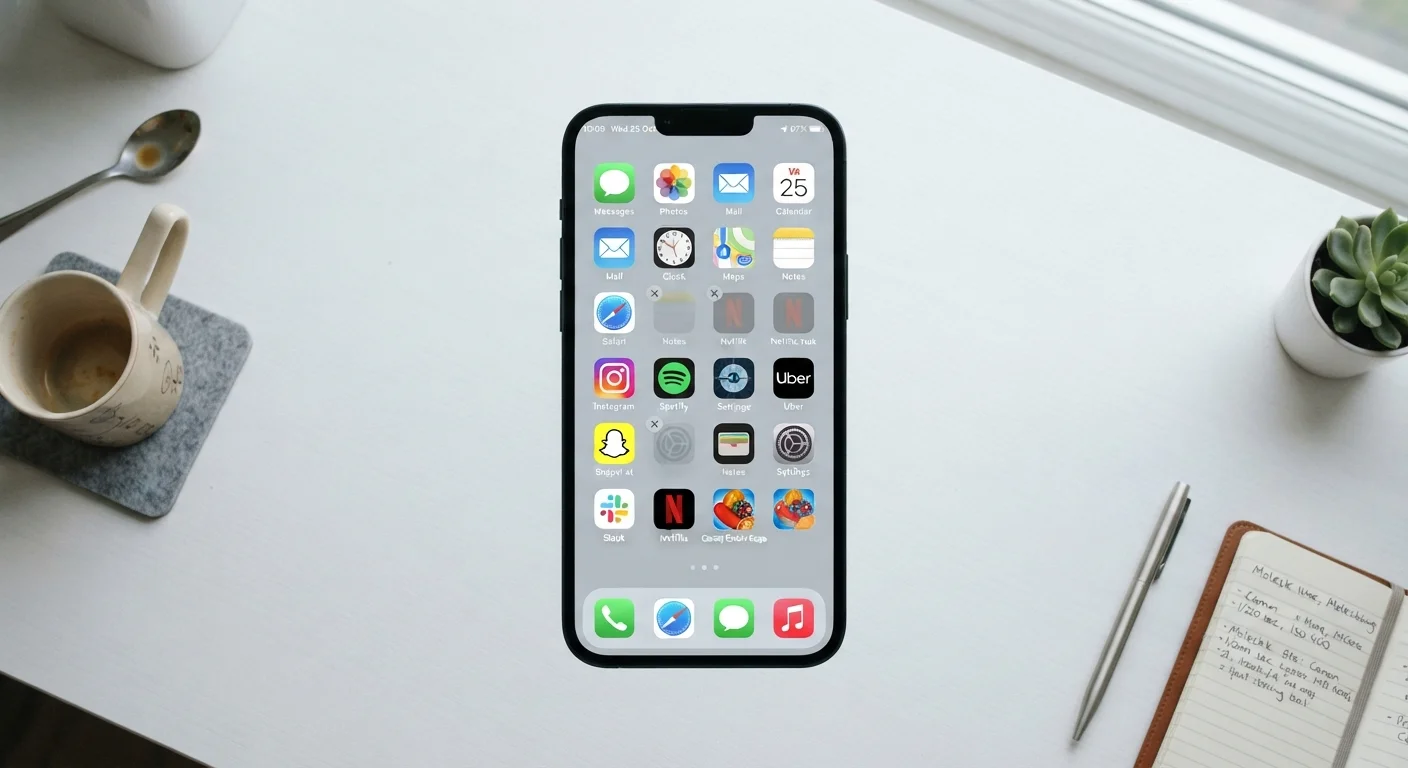
Why an App Audit Is Worth Your Time
The average smartphone user has dozens of apps installed — many of which haven't been opened in months. What most people don't realize is that dormant apps aren't necessarily dormant in terms of data. Background refresh, location tracking, and access to contacts or the microphone can persist long after you've forgotten an app exists. For a deeper look at what mobile apps are actually collecting, see what your apps actually know about you.
An app audit isn't just about clearing storage space. It's a direct way to reduce your digital footprint — limiting which third parties can access your camera, location history, or browsing habits. This guide walks through the process systematically, from identifying candidates for deletion to adjusting the permissions that remain.
What you will need
Tools and Settings You'll Use
No third-party software is required for this process. Both major mobile operating systems provide native tools that surface usage data and permission details directly.
Phone Settings App (iOS: Settings > General > iPhone Storage)
Shows all installed apps sorted by size, and flags apps that haven't been opened recently.
Phone Settings App (Android: Settings > Apps or App Management)
Lists all installed apps with storage usage and last-used data depending on your device manufacturer.
iOS Privacy & Security Settings (Settings > Privacy & Security)
Provides a centralized view of which apps have access to each permission category such as location, camera, and contacts.
Android Permission Manager (Settings > Privacy > Permission Manager)
Lets you browse permissions by category and see exactly which apps hold each type of access.
Once you've located these settings, the audit itself moves quickly. The steps below apply broadly to both platforms, with notes where the experience differs meaningfully.
Step-by-Step: Reviewing and Pruning Your Apps
Work through these steps in order. The first pass focuses on removal; the second focuses on tightening what remains.
Generate a Full List of Installed Apps
Open your phone's storage settings and scroll through the complete list of installed apps. On iPhone, go to Settings > General > iPhone Storage. On Android, go to Settings > Apps. Sort by last used or least used if that option is available on your device. This gives you a realistic picture of what's actually on your phone versus what you actively use.
Flag Apps You Haven't Opened in 90 Days
Any app you haven't consciously used in three months is a strong candidate for removal. iOS highlights these automatically in iPhone Storage and may have already offloaded them. On Android, the window varies by manufacturer. Mark these apps as candidates before moving on — you don't have to decide immediately, but flagging them keeps the process moving.
Delete Redundant and Forgotten Apps
Work through your flagged list and delete apps that serve no current purpose. Tap and hold the icon (iOS) or use the app management menu (Android) to uninstall. Pay particular attention to: old retail or event apps used once, duplicate tools where you now use a different option, and trial apps you never converted. Each deletion removes a potential background data-collection point.
Close Accounts Before or After Deleting
Deleting an app from your phone does not delete your account with that service or the data associated with it. For any app handling personal information — social platforms, shopping apps, health tools — visit the service's website or in-app account settings to request account deletion before or after uninstalling. Look for options like "Delete Account" or "Request Data Deletion" in the account or privacy section. Some services require a confirmation email or a waiting period.
Review Permissions for Apps You're Keeping
For every app that survives your cull, audit its permissions. On iOS, go to Settings > Privacy & Security and work through each category — Location, Contacts, Camera, Microphone, Photos, and so on. On Android, open Settings > Privacy > Permission Manager and review by permission type. Ask for each app: does this permission match what the app actually does? A flashlight app with microphone access, or a recipe app with contact list access, warrants scrutiny.
Revoke Permissions That Don't Match the App's Function
For any permission that seems disproportionate, revoke it and test the app. Many apps request broad permissions speculatively — they function fine with more limited access. If revoking a permission breaks core functionality you actually need, you can restore it selectively. If an app stops working because you denied access to your full contact list or always-on location, that's a signal worth weighing when deciding whether to keep it at all.
Set a Recurring Audit Reminder
Add a recurring calendar event every 90 days labeled 'App Audit.' A consistent cadence means you're rarely dealing with more than a handful of new installs at a time, keeping the process quick. Tying it to a season — the start of spring, summer, fall, or winter — makes it easy to remember.
For a broader look at how permissions intersect with notifications and focus modes, taking back control of your phone's settings covers those layers in detail. If you use AI-powered apps, it's also worth reading what to verify before trusting an AI app with personal information before deciding what to keep.
App Deletion Doesn't Equal Data Deletion
Removing an app from your device stops future data collection from that installation, but it doesn't automatically erase data the company already holds on their servers. If reducing your stored data footprint is the goal, account deletion or a formal data removal request through the service's privacy settings is the necessary additional step. Requirements vary by company and jurisdiction.
Making It a Habit
A one-time audit is useful; a recurring one is genuinely protective. Setting a calendar reminder every three months — aligned with a season change, for example — creates a natural checkpoint. Each time you install a new app, get into the habit of checking its permissions immediately rather than accepting defaults and moving on.
App audits also fit naturally into broader device hygiene. If you're managing apps and accounts across multiple devices, managing your digital life across multiple devices offers strategies for staying organized. And if you're ever preparing to hand off a device entirely, preparing a device before selling or donating it covers the full sign-out and reset process. This audit is also one practical piece of a larger effort — your complete guide to reducing your online data trail covers the full picture.
The content on this site is for informational purposes only and is not a substitute for professional advice. Always consult a qualified professional for guidance specific to your situation.