

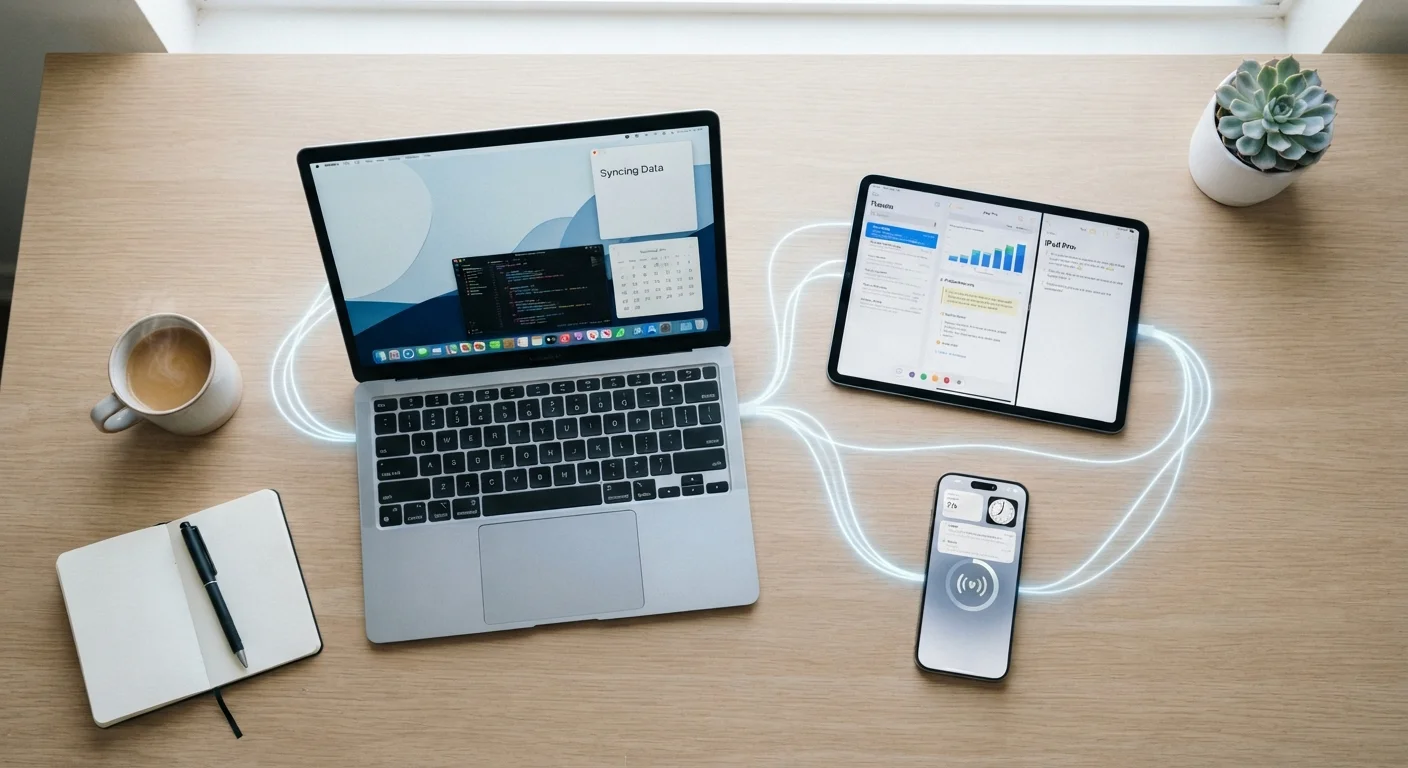
The Central Hub Model: How Files Actually Travel
When most people imagine syncing, they picture two devices talking directly to each other — phone whispering to laptop across the room. The reality is more like a post office. Your devices send files up to a cloud server, and other devices pull them down from that same server. The cloud is the hub; your devices are the spokes.
When you save a document, your sync client — a small background app — detects the change, compresses the altered data, and uploads it to the provider's servers. Any other device linked to your account periodically checks the server for changes. If it finds a newer version, it downloads only what's different. This is why sync isn't instant: it depends on upload speed, server processing, and the other device being online.
For a deeper look at how files are divided between on-device and cloud storage, the local vs. cloud storage explainer covers the trade-offs in practical terms.
Delta-sync
Only changed file portions are uploaded
Most major sync platforms use delta-sync rather than re-uploading entire files, significantly reducing upload time and data usage for large documents.
~30 sec
Typical sync delay on fast connections
On a reliable broadband connection, most sync services propagate a small file change to another device within seconds, though larger files or slow connections extend this.
3 layers
What modern device sync covers
Contemporary sync ecosystems typically cover files, application state (tabs, progress), and system settings — all managed through distinct but coordinated sync channels.
Version Tracking: How Services Know Which Copy Wins
The mechanism that decides which file is the authoritative copy relies on two signals: timestamps and checksums. A timestamp records when a file was last modified. A checksum is a short mathematical fingerprint of the file's contents — change even one character and the checksum changes entirely.
When a sync service sees two versions of the same file, it compares both. If one device's copy has a newer timestamp and a different checksum, the server treats it as the updated version and distributes it to other devices. This works smoothly the vast majority of the time.
Conflicts arise in a specific scenario: you edit a file on your laptop while it's offline, and separately edit the same file on your phone. When both devices reconnect, they each upload a version with a newer timestamp than the server's last known copy — but the two versions differ from each other. The sync service can't know which change you intended to keep, so it typically saves both, labeling one as a "conflict copy" for you to review manually.
“The hardest problem in distributed systems isn't moving data — it's deciding which version of the truth to believe when two sources disagree.”
— Leslie Lamport, Computer scientist and Turing Award recipient, known for foundational work on distributed systems
Settings and App State: Syncing Beyond Files
Cloud sync isn't limited to documents and photos. Operating systems also sync settings — Wi-Fi passwords, display preferences, keyboard shortcuts, even installed app lists — so that a new device can feel familiar immediately after signing in. This is handled through dedicated settings-sync channels separate from file storage.
Apps add another layer. Many apps maintain their own sync of user state: your reading position in an e-reader, game progress, or browser tabs open on another machine. These use lightweight, frequent pushes of small data packets rather than the heavier file-sync process. If you've ever opened a browser on a new device and found your tabs already waiting, that's app-state sync at work.
Managing which apps have access to your account — and which sync features they use — is worth periodic review. The app audit guide explains how to identify and prune apps you no longer need or trust.
Practical Considerations: Battery, Data, and Staying in Control
Background sync has real costs. Constantly checking for changes, compressing data, and uploading over cellular consumes both battery and mobile data. Most sync platforms offer controls worth knowing about: Wi-Fi-only sync for large files like photos, adjustable sync frequency, and the ability to pause sync entirely during travel or low-battery situations.
Understanding sync mechanics also matters when you change devices. If you sign out of your cloud account before a device is fully synced, the most recent changes on that device may never reach the server — and could be lost. Always confirm sync is complete before signing out or performing a factory reset. Our multi-device management guide covers strategies for staying organized across an entire ecosystem of devices.
Before Resetting or Selling a Device
Always wait for sync to complete fully — watch for the sync status indicator in your cloud app to show 'Up to date' — before signing out or performing a factory reset. Files edited after your last successful sync may not exist anywhere else and could be permanently lost if the device is wiped prematurely.
For anyone managing files across phones, laptops, and tablets, the mechanics described here apply regardless of which platform or service you use. The specifics of the interface differ; the underlying logic of hub-and-spoke syncing, version comparison, and conflict resolution remains consistent.
Frequently Asked Questions
This usually happens because one device hasn't finished syncing, is offline, or has a pending conflict. Give the slower device a moment connected to Wi-Fi, and both copies should resolve. If a conflict persists, your sync service typically saves both versions so you can choose which to keep.
Some services offer an 'online-only' or 'Files On-Demand' mode that keeps a placeholder on your device but stores the actual file in the cloud. Opening it downloads a fresh copy. This frees local storage but requires an internet connection to access those files.
Reputable cloud providers encrypt data both in transit and at rest, making unauthorized access difficult. However, your account's own security — strong passwords, two-factor authentication — matters just as much as the provider's infrastructure. For security basics, see our <a href="/tech-gadgets/everyday-devices/the-everyday-guide-to-keeping-your-devices-secure-without-being-a-tech-expert">everyday device security guide</a>.
Providers typically give a grace period during which your files remain accessible. After that, access is usually restricted or files may be deleted depending on the service's terms. Download local copies of anything important before cancelling.
It can, if not configured carefully. Most sync apps let you restrict background syncing to Wi-Fi only. Large uploads — like backing up a day's worth of photos — are best left for Wi-Fi connections to avoid hitting data caps.
Sign out of all cloud accounts before wiping the device. This unlinks it from your sync ecosystem and prevents the new owner from accessing your data. Our <a href="/tech-gadgets/everyday-devices/preparing-a-device-before-selling-donating-or-recycling-it">device handoff guide</a> walks through the full process.
The content on this site is for informational purposes only and is not a substitute for professional advice. Always consult a qualified professional for guidance specific to your situation.