

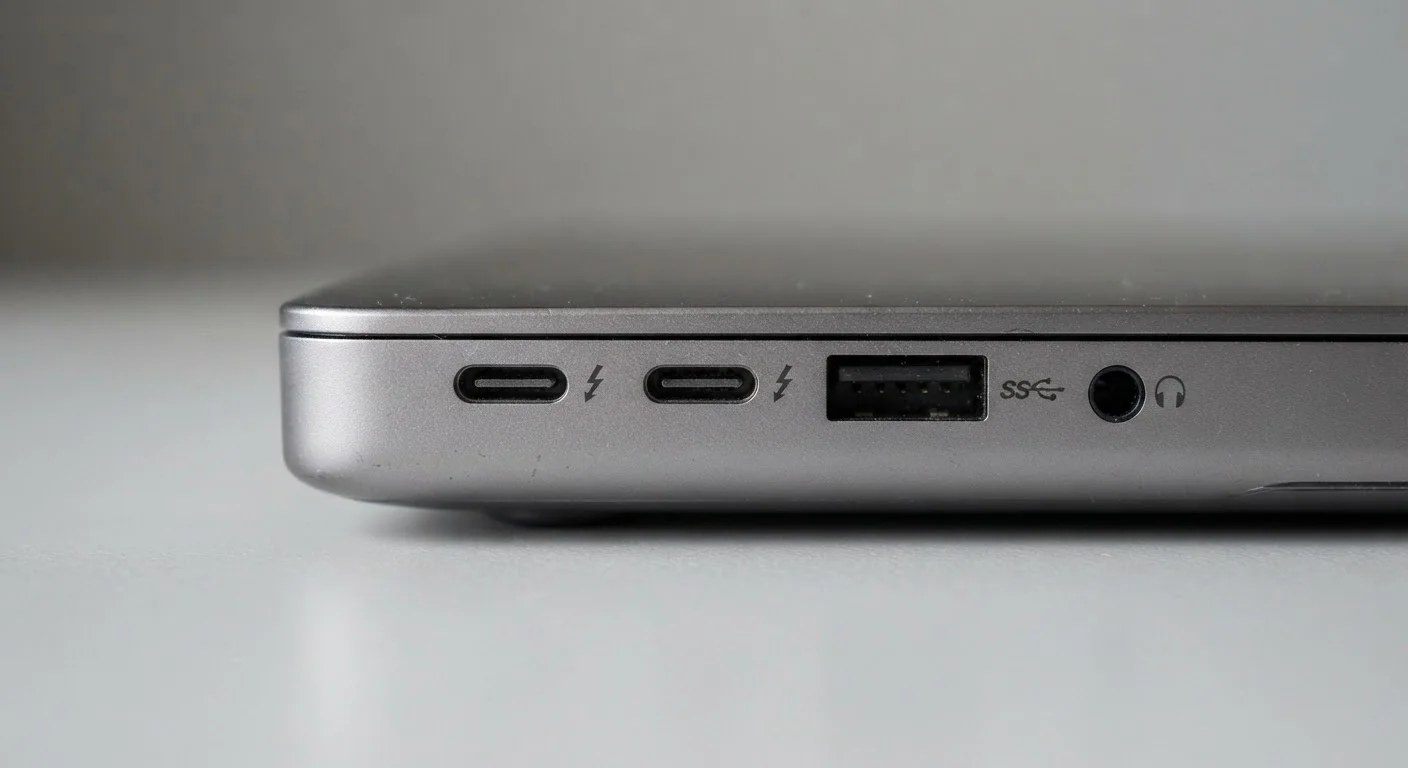
Why the Same Port Shape Can Mean Very Different Things
Plug a cable into a port and expect it to just work — that's the reasonable assumption. But the reality of modern connectors is more complicated. A USB-C port on one laptop might charge at 100 watts and transfer files at 40 Gbps, while a USB-C port on a budget peripheral might only carry basic power and slow USB 2.0 data. Same oval shape, dramatically different capability.
Understanding what each port actually supports — not just what it looks like — helps you troubleshoot slow transfers, choose the right cables, and get the most out of hardware you already own.
| USB-A max theoretical speed (USB 3.2 Gen 2) | 10 Gbps (USB Implementers Forum (USB-IF) specification) |
| USB-C Power Delivery max (PD 3.1) | 240 W (USB-IF USB PD 3.1 specification) |
| Thunderbolt 4 minimum certified data speed | 40 Gbps (Intel Thunderbolt 4 specification) |
| Thunderbolt 5 peak bandwidth burst | 120 Gbps (Intel Thunderbolt 5 specification) |
| USB 2.0 max speed (legacy standard) | 480 Mbps (USB-IF USB 2.0 specification) |
| Max devices in a Thunderbolt daisy-chain | 6 devices (Intel Thunderbolt specification) |
USB-A: The Rectangular Legacy Port
USB-A is the flat, rectangular connector most people have used for decades. It appears on chargers, flash drives, keyboards, mice, and countless accessories. USB-A ports come in several generations:
- USB 2.0: Maximum theoretical transfer speed of 480 Mbps. Still common on hubs, older peripherals, and budget devices.
- USB 3.0 / USB 3.1 Gen 1 / USB 3.2 Gen 1: Up to 5 Gbps. Often identified by a blue-colored port interior.
- USB 3.1 Gen 2 / USB 3.2 Gen 2: Up to 10 Gbps. Less common on the USB-A form factor.
USB-A is not reversible — there is only one correct orientation. Despite its age, USB-A remains widespread because of the enormous ecosystem of compatible accessories.
USB (Universal Serial Bus)
An industry-standard connection protocol for data transfer and power delivery between devices. It spans multiple generations with progressively higher speeds.
Gbps (Gigabits per second)
A measure of data transfer speed. One gigabit equals 1,000 megabits. Higher Gbps values mean faster file transfers and better support for high-resolution video.
Thunderbolt
A high-speed hardware interface developed by Intel, using the USB-C connector shape. It supports data, video, and power simultaneously and is backward compatible with USB-C.
USB Power Delivery (USB PD)
A charging specification that allows USB-C connections to negotiate variable power levels up to 240 W, enabling fast charging of laptops, phones, and other devices over a single cable.
Alt Mode
A feature of the USB-C standard that allows the connector to carry non-USB signals — such as DisplayPort video or HDMI — alongside or instead of USB data.
Daisy-chaining
Connecting multiple devices in a chain through a single port, where each device passes the signal to the next. Supported by Thunderbolt, it reduces the number of ports needed on a host computer.
USB-C: The Versatile Oval Connector
USB-C is the small, oval, reversible connector now standard on smartphones, laptops, tablets, and monitors. Unlike USB-A, the USB-C connector shape itself tells you almost nothing about capability. A USB-C port could support any of the following, depending on the device and chipset:
- USB 2.0 speeds (480 Mbps) — common on budget phones and some accessories
- USB 3.2 Gen 1 (5 Gbps) or Gen 2 (10 Gbps)
- USB4 Gen 2×2 (20 Gbps) or USB4 Gen 3×2 (40 Gbps)
- Power Delivery (USB PD): Negotiated charging up to 240 W under the USB PD 3.1 specification
- DisplayPort Alt Mode: Video output over the same cable
- Thunderbolt 3 or 4 (covered below)
Always check your device's specification sheet rather than assuming capability from the connector shape alone. Manufacturers are required to mark Thunderbolt-capable ports with a lightning bolt icon.
Thunderbolt: High-Speed, Multi-Protocol Performance
Thunderbolt is Intel's high-speed protocol that runs over the USB-C connector on modern devices. It is a strict superset of USB — every Thunderbolt port also works as a USB-C port, but not every USB-C port supports Thunderbolt.
Thunderbolt vs. USB-C: A Common Source of Confusion
All Thunderbolt 3, 4, and 5 ports use the USB-C connector, but the reverse is not true. A USB-C port without a Thunderbolt controller cannot run Thunderbolt devices at full speed. Look for the lightning bolt icon stamped next to the port to confirm Thunderbolt support. Without it, assume USB-C only.
Here's how the versions compare:
| Version | Max Data Speed | Max Video | Daisy-Chain |
|---|---|---|---|
| Thunderbolt 3 | 40 Gbps | Two 4K or one 5K displays | Up to 6 devices |
| Thunderbolt 4 | 40 Gbps | Two 4K displays (mandatory) | Up to 6 devices |
| Thunderbolt 5 | 120 Gbps (bandwidth burst) | Up to 8K or three 4K | Up to 6 devices |
Thunderbolt 4 raised the floor on mandatory capabilities compared to Thunderbolt 3 — certified devices must support PCIe tunneling, a minimum of 32 Gbps PCIe bandwidth, and at least 15 W of device charging. Thunderbolt cables are typically labeled and may cost more than standard USB-C cables — using the correct cable matters for achieving full performance.
40 Gbps
Thunderbolt 3 & 4 peak data bandwidth
Per the Intel Thunderbolt specification — enough to transfer a 4K movie in seconds under ideal conditions.
120 Gbps
Thunderbolt 5 bandwidth burst mode
Introduced with Intel's Thunderbolt 5 specification, enabling next-generation external GPU and display support.
480 Mbps
USB 2.0 maximum theoretical speed
Still found on many hubs, chargers, and peripherals — adequate for keyboards and mice, but a bottleneck for storage.
Practical Tips for Identifying and Using Your Ports
Since shapes alone are unreliable guides, use these approaches to identify what your ports actually support:
- Check for icons: A lightning bolt symbol indicates Thunderbolt. The "SS" (SuperSpeed) marking near a USB-A port signals USB 3.x. A "10" after the SS indicates 10 Gbps capability.
- Read the spec sheet: Every device manufacturer publishes port specifications. Look up your model on the manufacturer's support page.
- Use the right cable: A Thunderbolt 4 cable will carry Thunderbolt and USB4 signals. A generic USB-C cable may only support USB 2.0 speeds — check the cable's own rating, not just the port.
- Match for the task: For external NVMe drives or high-resolution displays, use a port and cable rated for USB4 or Thunderbolt. For a keyboard or a mouse, USB 2.0 is perfectly adequate.
Understanding the gap between a connector's shape and its actual capability prevents frustration and helps you make smarter use of the devices already in your hands.
The content on this site is for informational purposes only and is not a substitute for professional advice. Always consult a qualified professional for guidance specific to your situation.