

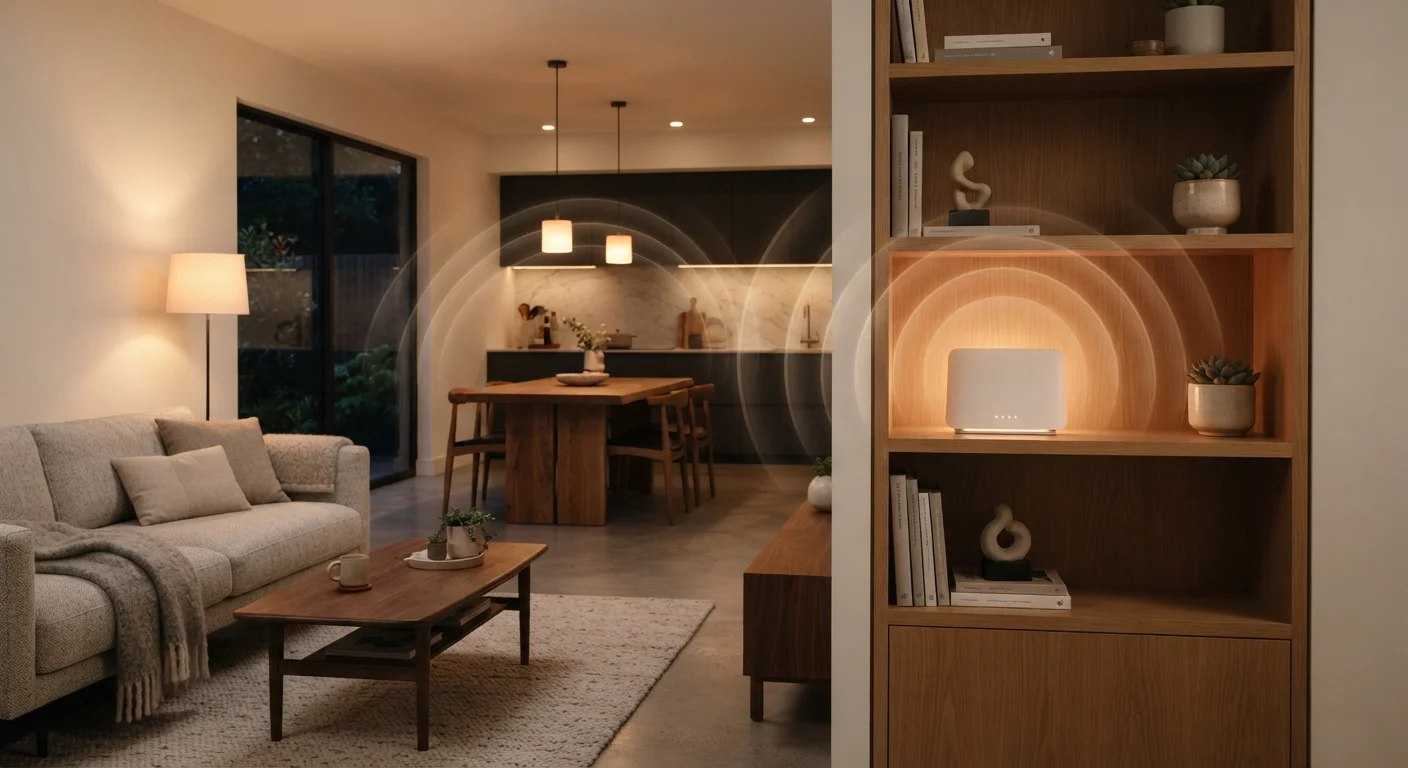
Why Placement Comes Before Settings
Before adjusting a single setting in your router's admin panel, consider where the device physically lives. Radio signals travel outward in roughly spherical patterns and weaken when they pass through walls, floors, cabinets, and appliances. A router tucked into a corner of the basement or hidden inside an entertainment cabinet is fighting an avoidable battle.
The single most effective move most households can make is repositioning. Aim for a central, elevated location — a high shelf in a main hallway or living area — so the signal reaches the greatest number of rooms with the fewest obstacles. Keep it away from microwave ovens and cordless phones, both of which can generate interference on the 2.4 GHz frequency range.
Elevation and Centrality Are Your Starting Points
If your router currently sits on the floor or inside a media cabinet, repositioning it to an open, centrally located shelf is the highest-impact change you can make — before adjusting any settings. Aim for a spot roughly in the middle of the space you want to cover, elevated at least three feet off the ground. This one physical change often resolves dead zones that users previously attributed to hardware limitations.
Understanding the Two Main Bands
Modern routers broadcast on two frequency bands: 2.4 GHz and 5 GHz. Understanding the tradeoffs helps you connect devices more intentionally.
- 2.4 GHz travels farther and penetrates walls more effectively, but it shares space with many other household devices and neighboring networks, creating congestion. Maximum real-world throughput is relatively modest.
- 5 GHz delivers significantly faster speeds and is less congested, but its range is shorter and it loses more signal through solid barriers. Ideal for devices close to the router.
Many routers use a feature called band steering — automatically moving devices to the appropriate band. If yours supports it, enabling it in the admin interface can reduce the need to manage connections manually. Devices that only need light data (smart plugs, sensors) are fine on 2.4 GHz; streaming devices and laptops benefit most from 5 GHz proximity.
~45%
Wi-Fi issues caused by interference or placement
Industry estimates consistently attribute a large share of home Wi-Fi complaints to environmental and placement factors rather than ISP speed limitations.
3x
Potential throughput difference between 2.4 and 5 GHz
Under comparable conditions at close range, 5 GHz connections routinely deliver two to three times the real-world throughput of 2.4 GHz connections on modern routers.
Choosing the Right Wi-Fi Channel
Within each band, Wi-Fi signals are divided into channels. In a densely populated area, many routers from different households broadcast on the same default channels, causing interference that slows everyone down.
For 2.4 GHz, channels 1, 6, and 11 are the only ones that don't overlap with each other — use a free Wi-Fi analyzer app to see which channel your neighbors are using, then pick the least congested one. For 5 GHz, the channel pool is much wider and overlap is far less common, but it's still worth checking.
Most routers default to automatic channel selection, which is reasonably good but not always optimal. Logging into your router's admin interface (typically via a local IP address printed on the device) and manually setting the channel to a less-used option is a low-effort, often high-reward adjustment.
Wi-Fi 6 and the 6 GHz Band
Newer routers supporting Wi-Fi 6E introduce a third band at 6 GHz, offering faster speeds and dramatically less congestion in areas where many networks compete. However, 6 GHz has even shorter range than 5 GHz and requires both the router and the connecting device to support Wi-Fi 6E. If your devices are a few years old, they likely won't benefit from this band yet — but it's worth knowing as you consider future hardware.
Practices That Make a Real Difference
Beyond placement and band selection, a handful of consistent habits and settings changes help maintain reliable performance over time.
Restart your router on a regular schedule.
Over time, routers accumulate stale connection tables and memory leaks that degrade performance. A periodic restart — weekly or monthly — clears these issues without any configuration change.
Keep router firmware updated.
Manufacturers release firmware updates that patch security vulnerabilities and improve stability. An outdated router is both a performance and a security liability.
Use Quality of Service (QoS) settings to prioritize critical traffic.
QoS lets you tell the router which devices or traffic types get bandwidth priority when the network is under load, preventing a background download from degrading a video call.
Physically separate the router from other electronics.
Devices like baby monitors, cordless phones, and microwaves emit signals that can directly interfere with Wi-Fi performance, especially on the 2.4 GHz band.
Use a wired Ethernet connection for stationary, high-bandwidth devices.
Wi-Fi is a shared, wireless medium with inherent variability. Devices like desktop computers, gaming consoles, and smart TVs benefit enormously from a direct Ethernet connection, freeing wireless capacity for devices that genuinely need it.
Quick Wins You Can Act on Today
Not every improvement requires deep technical knowledge. These actions take minutes and routinely resolve common frustrations.
When One Router Isn't Enough
Even an optimally placed router has physical limits. Multi-story homes, thick concrete walls, and sprawling floor plans often create dead zones that no amount of repositioning fully solves. In these cases, the options expand beyond the single-router setup.
A mesh Wi-Fi system uses multiple nodes that communicate with each other to create a unified network. Devices roam seamlessly as you move through the home. A wired access point — a second radio connected to the router via Ethernet cable — delivers even more reliable coverage without the backhaul limitations some mesh systems face.
Wi-Fi extenders (also called repeaters) are widely available and inexpensive, but they typically create a separate network segment and can halve available bandwidth on the extended connection. They're a workable stopgap but rarely the cleanest long-term solution.
“The best Wi-Fi is the one you never have to think about. Achieving that invisibility is almost always a result of thoughtful placement and configuration, not simply buying more hardware.”
— Wireless Networking Industry Advisor, Consultant specializing in residential and small-business network design
The content on this site is for informational purposes only and is not a substitute for professional advice. Always consult a qualified professional for guidance specific to your situation.